Creating vector art via the Live Trace function in Adobe Illustrator will convert a rasterized (e.g a pixel-based) graphic into a vectorized graphic (e.g artwork made up of vectors or small points). Using the Live Trace feature to convert your artwork ensures the crispest and cleanest plate possible, as well as allows scaling and transforming the artwork without losing data or composition clarity.
Depending on what type of artwork one is looking to convert to vector, a few considerations must be taken for best results. Pixel-based graphics, such as calligraphy and line art, should be converted to image mode of bitmap beforehand and have a higher resolution of 300-600. The more graphic, stark, and higher contrast an image is, the better the Live Trace result will be. Live Trace will not always work for all images but with practice, you’ll learn to recognize what images will work best with Live Trace.
First, open the file in Adobe Illustrator. Next, double-click on the image with the default (black) arrow tool until the Live Trace toolbar appears at the top of the Illustrator tool bar.
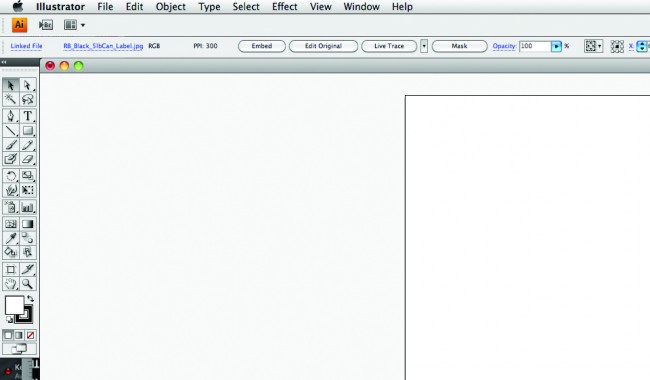
Live Trace Toolbar
Within the Live Trace toolbar in Adobe Illustrator, you have the ability to choose either between presets or experiment with different manual settings. The default is usually adequate for most purposes so click on Live Trace. The image will reshape and convert to 100% cmyk black. If you are satisfied with the conversion-to-vector on screen preview, then click “Expand” or “Live Paint” to immediately convert the file to vector. White and black anchor squares will appear on the Illustrator art board to denote the successful conversion. Click on your white artboard again to complete the trace.
Depending on the quality of the original pixel-based file and the desired effect in mind, Live Trace is a very powerful editing tool for scanned-in calligraphy and high-contrast line art.
You will need crop marks if you are sending the files to us for printing. This will aid us in setting up your files into its final layout. While we will have the info on the final size of your printed piece, your crop marks in your file will help us determine that we are including all the elements you intended and in their proper place. This is especially important when your design will bleed off the page. How to place crop marks on your file, in Illustrator will depend on your CS version.
In CS3 or older – Filter > Create > Crop marks
In CS4 and newer – Effect > Crop marks
If you created your design in Illustrator and set up your artboard to measure the finished size of your printed piece, the crop marks will be outside the artboard. You will need to save your file with an eps extension so the crop marks will be included. You can then save the file as a PDF and send us both EPS and PDF. If you save as an AI extension, the crop marks were left off outside your artboard and not included in your file.
If you created your design on a larger artboard, use the rectangle tool to draw a box the desired size around your design. It will temporarily block your design until you go to your Color window and click on the white square with the red diagonal stripe. Using the selection arrow, move your box around until it’s the correct size and in the preferred place of your design. Add crop marks and save as a PDF.
The easiest way of setting up a 2-color file in an image editing program, such as Illustrator or InDesign, is to set your first color’s objects in either 100% of a color channel in CMYK mode where the three other color channels not used are set to 0%. The second color would then use 100% of a different color channel. For example, your first color’s objects may be 100% black and your second color’s objects are set to 100% cyan. If you are using this method, be sure to let us know which color channel corresponds to the ink colors you have chosen for your printing.
Our Preferred Method: If you are very comfortable with Illustrator or InDesign, you may use Pantone Swatches from the Swatch Color Libraries palette in lieu of using 100% of individual CMYK color channels. We recommend using swatches from the Pantone Solid Uncoated color book.
You will need to send your files at 100% scale. We do not resize, scale up or down, or rotate any artwork. We highly recommend using the ruler feature available in Adobe Illustrator, Photoshop and InDesign to check your work to see if it is the size you want.
When exporting a PDF from Adobe Illustrator or Adobe InDesign, please double check to make sure it is the correct size by either re-opening it in Illustrator or placing it in InDesign to check the actual dimensions of your file. In InDesign you can use the Rectangle Frame tool to draw a box around your images/text to measure.
In Photoshop, use the Image Size tool to check your size. Saving your file as a .TIF locks your image size.
Your scanner will likely save your image as a grayscale.jpg. Many scanners will only allow you to scan up to 300 dpi. If you can scan higher, choose 600 dpi. You have some options now.
If looking for the crispest and cleanest impression, you will need to convert the file to black and white only (no grey pixels). You have two methods depending on what computer software you have available. If you only have Photoshop, you will need to convert your file to one that is in image mode of bitmap. If your image dpi is currently 300 dpi, you can choose Image > Image Size and change your dpi to 600 or higher without changing the inches. Your file will temporarily be quite large but you will then save as a .TIF with LZW compression and this will resize it to something smaller and more manageable. A higher DPI can help with preserving your details and smoother pixelation while bitmapping. For exact steps to Image Mode of Bitmap, see our File Prep Tips.
If you have both Photoshop and Illustrator, you can convert your image to image mode of bitmap as directed above, then place your TIF into Adobe Illustrator, and convert the file to a vector art file via the Live Trace option. This does not always work with all files to give satisfactory results, so with practice, you will learn to recognize which files will give you a vector result you like. After converting to vector, save the file as a PDF or EPS for upload.
Grayscale is a range of shades of black on a spectrum from 1 to 100. Light gray is in the lower spectrum and darker grays are in the higher spectrum. While 100% black images and text will produce crisp line art and is the norm for letterpress, sometimes you may want to print something where you want to see all the details and subtleties of the shading.
If you are trying to print a photographic image, it’s best to choose one that has areas that provide high contrast between light and dark, that is, the photo has details that are both darker gray in the upper ranges (70 to 100% of black) and lighter gray in the lower ranges (5% to 35% of black). This contrast will give the most depth and interest to the photo. If your photo has mostly shades of black in a similar range (30 – 60% of black), it will look muddy to the eye because it’s harder to discern the shading without a lack of contrast. Experimenting with the image in Photoshop by changing levels of black or adding brightness and contrast can help some with this.
If you are printing a scanned image, where you want to keep the tonal imagery, you can send the file as grayscale and we’ll apply a line screen to it. Your image will be a large shape with the tones created as little dots on the surface of the plate. The films are very sensitive and will capture shades of black down to 5%. So if your background has some color, it may be picked up by the film and show on your plate.
Halftones and grayscale images can be challenging to print with relief plates on the commonly used uncoated papers of letterpress. Call us to discuss your particular image and the results you want to achieve.
We need your files and proofs to appear the way you want your final design to print – commonly called right-reading (no backward text or images). When we create your film negatives, our software does the reversing to create proper negatives, so leave that part up to us.
While using Adobe Illustrator, you will first need to create a rectangle by using the marquee tool (M) in your standard tool palette located on the left-hand side of your screen. Create the rectangle so that its dimensions are your piece’s final trim down size (e.g such as 5.5″ x 7″ for an invitation, etc). Next, while the rectangle is still selected, drag it to its proper location with respects to the artwork. This location should be the correct position intended for the crop marks. Please note that we do not add crop marks to any file at Boxcar Press, as we do not know where or what your intended trim down size is.
While the rectangle is still selected, please select EFFECT>Crop Marks to create the correct type of crop marks in Illustrator. If you need to shorten the length of the crop mark lines or thicken the line weight, you will need to expand the crop marks by selecting OBJECT>Expand or OBJECT>EXPAND APPEARANCES.
Before sending your Illustrator files to us, embed all linked images (an option in the Links palette). If linked images aren’t embedded, they can give an error message that your links are missing and we can’t output your plates! With InDesign, export your file as a press ready PDF.
Sending all your fonts packaged is not fail-safe: all needed fonts aren’t always provided, or all your fonts may not be recognized when we open your file, causing shifting and changes in your design. On the other hand, outlining fonts is fool-proof, safe, and ideal. So outline your fonts! In Illustrator, you do this by selecting TYPE>Create Outlines. This will automatically convert your text into vector shapes. Your type will temporarily look bolder and be highlighted in blue. Click on any white area of your file and it will look normal again.