Use baby wipes, an old soft cotton t-shirt and odorless mineral spirits. The L Letterpress machine can be cleaned with baby wipes.
If you used any Van Son ink from a can, return any extra ink back to the can from the plastic ink square. Clean the two ink squares, both glass and plastic with baby wipes. Take one side of the cotton rag and wipe off the ink on your plates with a light stroke. Your ink is only on the surface of the plates so it should clean easily. If you have any ink residue left, take part of the cotton rag and get a small amount of the mineral spirits from the bottle. Wipe lightly on your plates and then turn the cloth over to a dry spot and wipe the plates again to remove any spirits. Do not use baby wipes or water on your plates.
Clean your brayer with baby wipes and then finish with a wipe of the rag with mineral spirits. You always want your brayer (roller) to be completely clean.
Do not use any water to clean your polymer plates, we can’t say this enough.
When inking for letterpress, very little is always better. You only need a very light layer of ink on the top of your plates. We suggest the 2-step method of inking.
You will need these items:
- A new brayer (throw out the one that came with the machine and purchase a soft rubber brayer)
- The hard plastic sheet that comes with your machine – approx 6”.
- An ink knife
- Another piece of glass (or plastic) for part two of your inking – at least 8” wide and long.
Steps:
- Squeeze out an inch or two of ink from the tube. Or if you have a can of our Van Son ink, take your ink knife and scoop out a tablespoon of ink from the surface of the ink can. Place it on the 6” square and start to mix the ink to make it more fluid and smooth. Use a motion like scrambling eggs where you turn the ink over, pull the knife through and repeat. The ink should soften a little while you mix.
- Take the ink knife and pull a small ⅛” thick roll of ink from the mixture with your blade. Move this ink to the second piece of glass. Dab that ink across the glass until it’s about equal to the width of your brayer. Roll your brayer back and forth and side to side through the ink until it’s spread out evenly on the brayer. The ink may make a little noise like its snapping as you spread it out.
You will need very little ink for printing and this two step method means that you can control your ink coverage better. Using your roller bearers (polymer strips we ship you), lay the strips on both sides of your design plate. These support your brayer for smooth inking. Take your brayer and ink up your polymer plate – usually 1-2 rolls of the brayer. If your inking is fuzzy and on the sides of your impression, you have too much ink. Wipe off your brayer and roll it through the ink again.
With a little practice you will learn to control inking. To add more ink to your second inked glass, pull a small bit from the first mixing square – always 1/8″ thick roll or less.
The L Letterpress comes with an oil based ink. You can continue to use those offered by the manufacturer but they are limited in colors. Boxcar Press sells a wide assortment of oil based and rubber based ink. We like rubber based inks for letterpress as they dry quickly on cotton papers and similar papers used for letterpress. Do not use any paints or water based inks on your photopolymer plates as they will soften and deteriorate the plates.
Creating vector art via the Live Trace function in Adobe Illustrator will convert a rasterized (e.g a pixel-based) graphic into a vectorized graphic (e.g artwork made up of vectors or small points). Using the Live Trace feature to convert your artwork ensures the crispest and cleanest plate possible, as well as allows scaling and transforming the artwork without losing data or composition clarity.
Depending on what type of artwork one is looking to convert to vector, a few considerations must be taken for best results. Pixel-based graphics, such as calligraphy and line art, should be converted to image mode of bitmap beforehand and have a higher resolution of 300-600. The more graphic, stark, and higher contrast an image is, the better the Live Trace result will be. Live Trace will not always work for all images but with practice, you’ll learn to recognize what images will work best with Live Trace.
First, open the file in Adobe Illustrator. Next, double-click on the image with the default (black) arrow tool until the Live Trace toolbar appears at the top of the Illustrator tool bar.
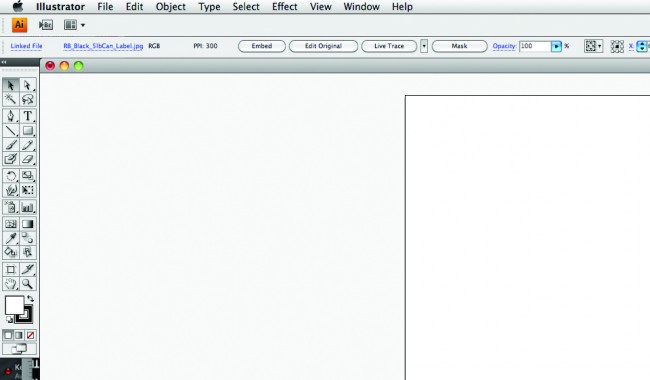
Live Trace Toolbar
Within the Live Trace toolbar in Adobe Illustrator, you have the ability to choose either between presets or experiment with different manual settings. The default is usually adequate for most purposes so click on Live Trace. The image will reshape and convert to 100% cmyk black. If you are satisfied with the conversion-to-vector on screen preview, then click “Expand” or “Live Paint” to immediately convert the file to vector. White and black anchor squares will appear on the Illustrator art board to denote the successful conversion. Click on your white artboard again to complete the trace.
Depending on the quality of the original pixel-based file and the desired effect in mind, Live Trace is a very powerful editing tool for scanned-in calligraphy and high-contrast line art.
Yes, we do print on colored papers and envelopes. See the papers and envelopes we stock. Some customers supply colored paper and envelopes which we can print on and we can special order some papers and envelopes.
There are some things you should avoid. For instance, light ink letterpressed over dark paper does not work well; dark ink over light colored paper works better. We now offer white digital addressing and return addresses on envelopes that are too bright or dark to accept letterpress inks. Foil stamping is also a good option for reply envelope addresses and return addresses.
Spot color or Pantone swatch colors can be applied to objects via the Pantone Swatch Color Book or Spot color library found in Adobe Illustrator. For Adobe InDesign, Spot Colors are more easily accessed. First, activate the Swatch palette by selecting WINDOW>Swatches.
Notice the fly-down menu icon in the upper right-hand corner of the Color palette? The icon looks like a small downward black triangle with four small lines next to it. Clicking on this will open a fly-out window menu. Hover your mouse over “Open Swatch Library” to open another fly-out window menu of all the color books. Very carefully move your mouse to hover over “Color Books”, which will open up another fly-out menu. You’ll see a lot of different color book options, but we recommend using “PANTONE solid uncoated”. Clicking on this color book will open a new window filled to the brim with a plethora of color
Swatches that Pantone has to offer.
Finally, assign all your file’s artwork, objects, and text to their appropriate Pantone Swatches or spot colors.
In Indesign, open the swatch window. click on the downward black triangle to the right and choose New Color. This opens a New Color Swatch Window. Select Spot as color type and Pantone Solid Uncoated as the Color Mode. The PMS colors will load for you to select and click OK.
While either in Adobe Illustrator or InDesign, select all your text that needs to be outlined using the black arrow tool (the default arrow tool). Next, select TYPE>Create Outlines. This will automatically convert your text into vector shapes. Your text will temporarily look bolder and be highlighted in blue. Click anywhere on your artboard that is white to deselect your text and its appearance will look normal again.
Normal production time is 10 working days, with day 1 being the day after we receive your signed contract. We will email you a contract the day or day after we receive your order and you can return that to us via email or fax.
Yes, it’s a specialty of ours! Please contact us at printing@boxcarpress.com and we will be happy to introduce you to Boxcar Press and provide you with information, samples and pricing. We can also be reached by phone at 315-473-0930.
We prefer press quality PDF files and also accept Adobe Illustrator files and EPS files. (If sending an eps file please also send a pdf for reference.)